
How to reverse images for transfers
With all of the endless options of images on The Graphics Fairy, the project ideas are pretty much endless, too. From painting on furniture, to iron on transfers for sewing projects, to printable ideas. Sometimes you find the perfect image, but you may need it in reverse, as in a mirror image. You may already know how to do it, but just in case I thought I’d share a quick & easy way to reverse images for transfers and projects using a free program called Paint.
Step by Step Instructions with Paint
It only takes about 3 seconds to do it. I use Paint a lot because it’s free…. I like free. Paint comes with all PC’s that have Windows. This tutorial will not work with a Mac unfortunately, since Macs don’t have Windows.
This post may contain affiliate links which won't change your price but will share some commission, you can find our privacy policy here.
 In case you’re not sure where to find Paint, I will include instructions. Look for this icon with the Blue Squares (Windows). Mine is at the bottom bar on my PC. Yours may be somewhere else, like on a start screen etc. Click on the Windows Icon.
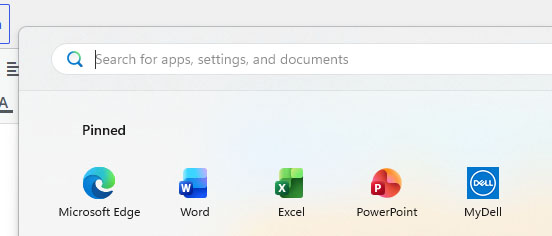
This search box will pop up, as well as your pinned programs. If your Paint program is not pinned there, just type “Paint” in the search box.
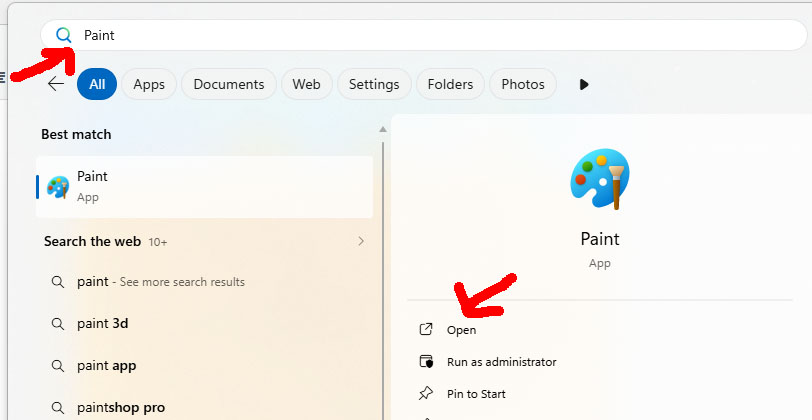
After you type “Paint” you should see the Icon for the Paint app. It looks like a cute little artist’s pallet. Click the word “Open” to open the program.

Once you have your Paint program open. Upload the image that you want to reverse by clicking on “File” and then “Open”. Select your image and upload it to Paint. Next click the little split triangle box, the one next to my big, red arrow. It will give you a drop-down box, choose FLIP HORIZONTAL.


Save your image and you’re done! See, I told you it was easy. Sometimes in our “make everything more difficult” world, we tend to overlook the simple things.
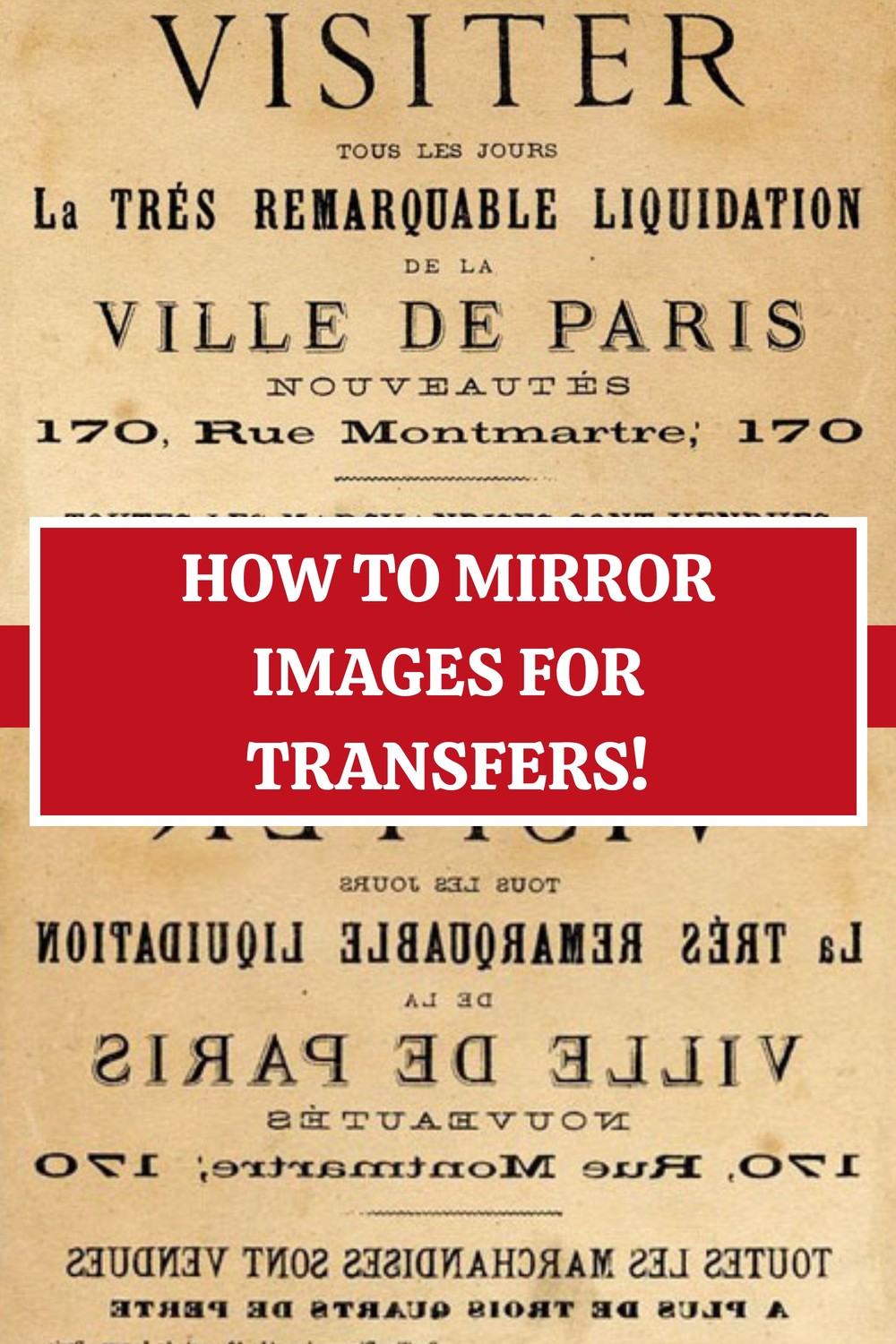
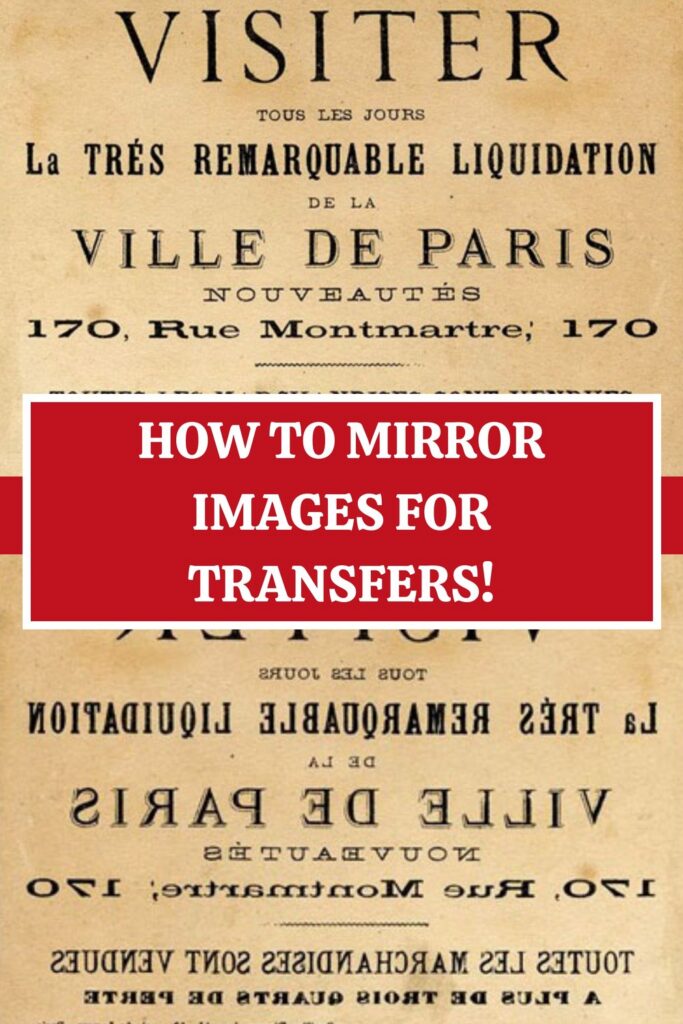
Before Mirroring:
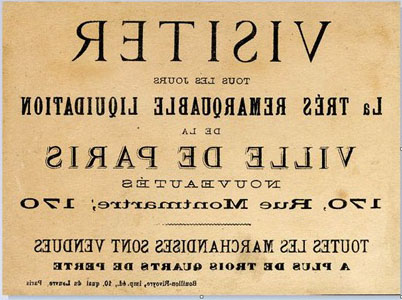
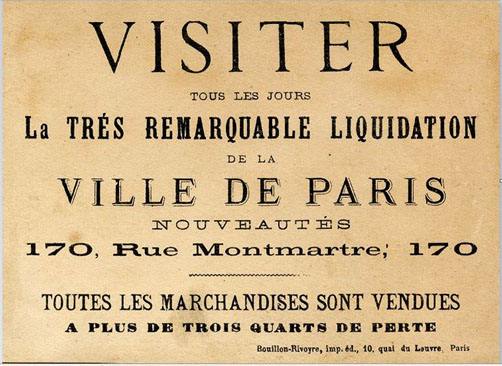 After Mirroring:



Shelia Minor says
Thank you so so much I have been trying for about a month trying to get mirror images of my Great Grandson and New Great Granddaughter to make Mommy , Daddy and my self tee shirts , now maybe i can get this done . Thank you again 🙂 🙂 Happy Great Grandma
graphicsfairy says
That is wonderful Shelia, so happy to help, have fun 🙂
FatCatAnna says
After not realising that the picture I was going to put on my t-shirt had to be reversed — I just wasted a beautiful t-shirt with not seeing your post until now. Waaahhhh …. so easy with Paint. I will now go and tuck my tail between my legs … and see if I can find another inexpensive t-shirt to do it correctly this time. Thank you so much Connie!!!
graphicsfairy says
Oh no! So sorry Connie, better luck next time? Ha ha 🙂
Connie says
Interested in your many graphics and crafts.
graphicsfairy says
Thanks Connie!
kristen says
i have a mac how do i get the paint app i need help! thx
graphicsfairy says
Hi Kristen,
Mac does not have an exact equivalent to Microsoft’s paint app. They used to have something called Macpaint, but they no longer offer it. I did a search and found this, http://paintbrush.sourceforge.net/
I can’t guarantee it will have the ability to reverse the image. You can do a Google search (as I did to find this app), to see if there are other possibilities. I hope that helps, good luck!!
Winnie says
Gina – you are a life saver – I have been searching all over to find out how to reverse my image – making T-shirts for my Grandson’s family with a picture of his race car and lettering – I knew it was somewhere – but, could not find it . even went to transfermagic site – but, no luck . . .what a great thing to share with us I can’t thank you enough . I will be visiting your site more often
Rebecca says
Hello
Thanks for this information.
Do you know if there is an app for iPad that would do something similar?
I would like write my own script and transfer that to the background of my scrapbook pages.
Karen Watson says
Hi Rebecca, I bet there is, but I don’t personally know of one. Maybe someone else here will see this and give us a tip about that!
ian haynes says
Hi, does this work with a word document as well? I’m stencilling a word graphic and having problems resizing it.
Lynn says
Thank you so much for sharing this!
Karen Watson says
You’re welcome Lynn!
Binit thakurathi says
I hand no idea it was this simple
Thanks ….
and just for the records
pretty much everyone likes free lol…
Karen Watson says
🙂
Moses says
Thanks Karen. This really set things up for me, and funny enough it’s really simple
Karen Watson says
You’re welcome Moses! I’m glad it helped!
Adriana says
Gracias, excelente y facil!!! Adriana
Karen Watson says
🙂
Truly Grateful says
Thank you so much!! I had no idea that option was in Paint -THE WHOLE TIME!!! LoL You saved me about a thousand headaches in trying to figure out how to do my next project.
Karen Watson says
Yay! You’re welcome!
Sam Kalimba says
Wow!!!! instant results. Thanks. You a great tutor>
Karen Watson says
I’m glad you found it useful Sam!
Sara says
You are amazing!! You have no idea how much time you saved me!
Karen Watson says
Yay! I’m glad you found it useful Sara!
Linda Perkins says
Thank you for sharing this. I was clueless as how to do it.
Karen Watson says
You’re welcome Linda! I’m glad it was helpful!
Kathy says
I was so happy when I found this site and discovered how easy this was. All thanks to you!!
Karen Watson says
You’re welcome Kathy!