
How to reverse images for transfers
With all of the endless options of images on The Graphics Fairy, the project ideas are pretty much endless, too. From painting on furniture, to iron on transfers for sewing projects, to printable ideas. Sometimes you find the perfect image, but you may need it in reverse, as in a mirror image. You may already know how to do it, but just in case I thought I’d share a quick & easy way to reverse images for transfers and projects using a free program called Paint.
Step by Step Instructions with Paint
It only takes about 3 seconds to do it. I use Paint a lot because it’s free…. I like free. Paint comes with all PC’s that have Windows. This tutorial will not work with a Mac unfortunately, since Macs don’t have Windows.
This post may contain affiliate links which won't change your price but will share some commission, you can find our privacy policy here.
 In case you’re not sure where to find Paint, I will include instructions. Look for this icon with the Blue Squares (Windows). Mine is at the bottom bar on my PC. Yours may be somewhere else, like on a start screen etc. Click on the Windows Icon.
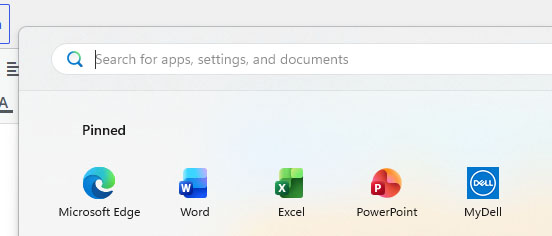
This search box will pop up, as well as your pinned programs. If your Paint program is not pinned there, just type “Paint” in the search box.
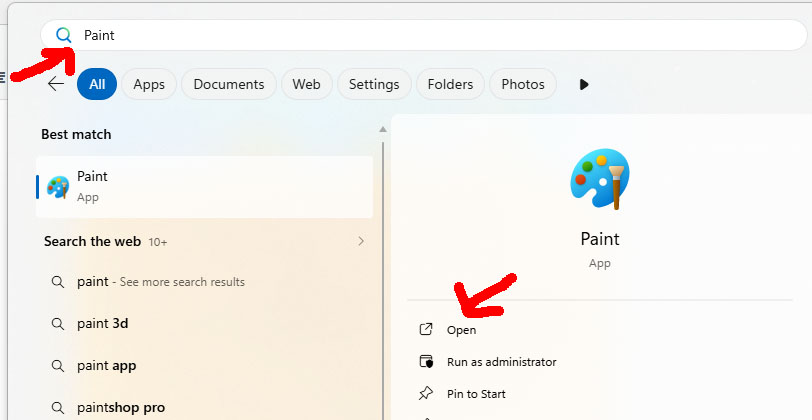
After you type “Paint” you should see the Icon for the Paint app. It looks like a cute little artist’s pallet. Click the word “Open” to open the program.

Once you have your Paint program open. Upload the image that you want to reverse by clicking on “File” and then “Open”. Select your image and upload it to Paint. Next click the little split triangle box, the one next to my big, red arrow. It will give you a drop-down box, choose FLIP HORIZONTAL.


Save your image and you’re done! See, I told you it was easy. Sometimes in our “make everything more difficult” world, we tend to overlook the simple things.
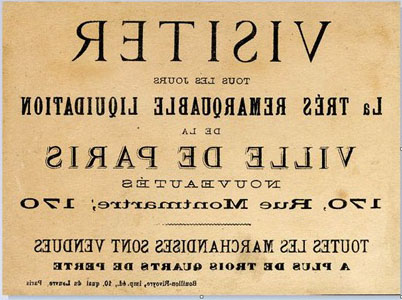
Before Mirroring:
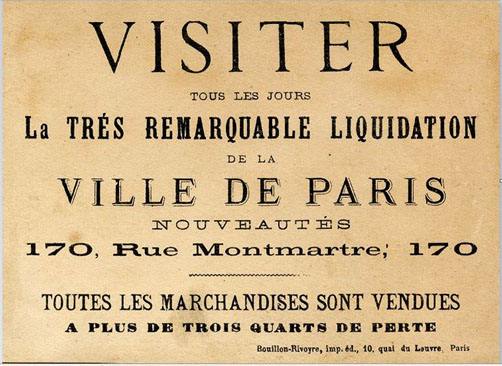 After Mirroring:




Shellie says
Oh! Thank you for simplifying my life! Huge time saver for me!!! Much appreciation!
graphicsfairy says
I am so happy you found it useful Shellie 🙂
Debb says
Maybe you can help with my dilemma. I made an 2 images with words on them that I wasn’t to print. One image on one side of the paper, print, second image on reverse of same paper, then print. No matter what way I have saved my files I cannot get my reverse side to print correctly. It either prints upside down or in reverse. I’m using PSP X7. What am I doing wrong? I’ve wasted so much ink and paper food think I’d have figured it out by now … but nope. My last attempt I monitored vehicle then flipped horizontal and it was upside down and had reversed text. Lol, I’m about to pull out my hair … I’m smarter than this. Lol, help …
graphicsfairy says
Hi Debb,
I am so sorry you are having such issues! It is usually a pretty straight forward process. Here is the link to how I do it in “Paint” https://thegraphicsfairy.com/how-to-reverse-images-for-transfers/ which is how I do it, unfortunately I do not know what else to tell you, so sorry!
Debb says
Thanks for your reply. Sorry for my typos … very bad head cold and been hard to see auto corrections lol. I’ll check out the link, thanks.